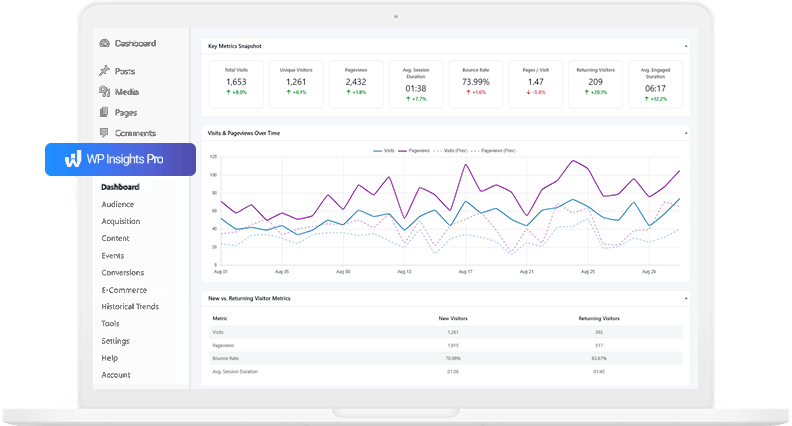

How to Track Outbound Link Clicks in WordPress
As a site owner, you work hard to provide valuable content for your audience. Often, that means linking out to other useful resources, partner websites, or affiliate products. This raises an important question: are visitors actually clicking those external links?
If you want to track outbound links in WordPress without using Google Tag Manager or custom code, the setup can be much simpler than many people expect.
Understanding which external links your audience finds most valuable can provide useful insight into user behavior and content performance. However, outbound link tracking in WordPress is not always enabled by default in standard analytics setups.
This guide explains how to enable WordPress external link tracking so you can start measuring outbound link clicks with minimal setup.
What is Outbound Link Tracking in WordPress?
An outbound link (or external link) is any link on your site that directs a visitor to a different domain. For example, if your site is my-blog.com, a link to another-website.com is an outbound link.
Tracking these clicks helps you answer valuable questions:
- How much traffic am I sending to my partners or affiliates?
- Which external resources do my readers find most interesting?
- Are people clicking the source links in my research articles?
By default, most analytics tools do not track these clicks automatically because they are not page views on your own site.
Automatic Outbound Link Tracking in WP Insights Pro
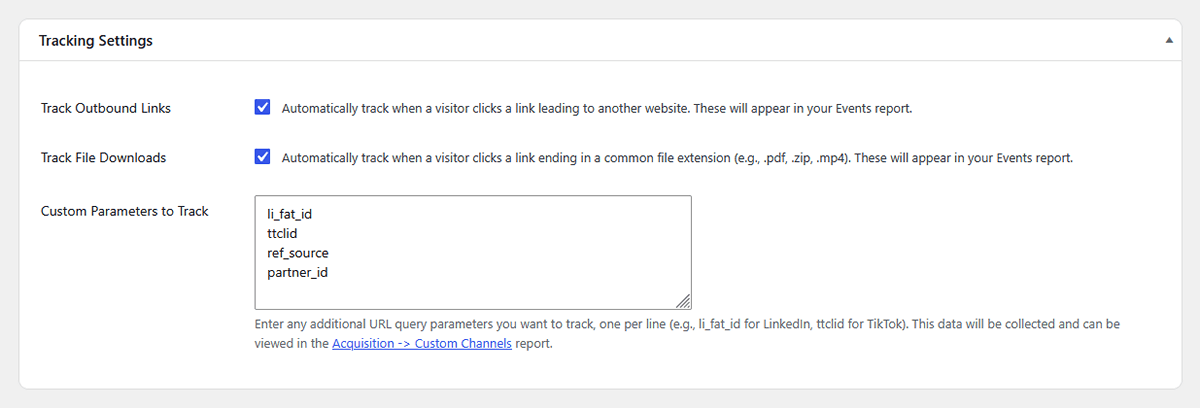
In WP Insights Pro, outbound link tracking is enabled by default and requires no additional configuration. It automatically detects when a visitor clicks a link pointing to another domain ignoring non-web links such as mailto: or tel: to keep your data clean and relevant. If you ever need to toggle this setting, you can find it by navigating to WP Insights > Settings > Tracking Settings.
How to See Your Outbound Link Click Reports
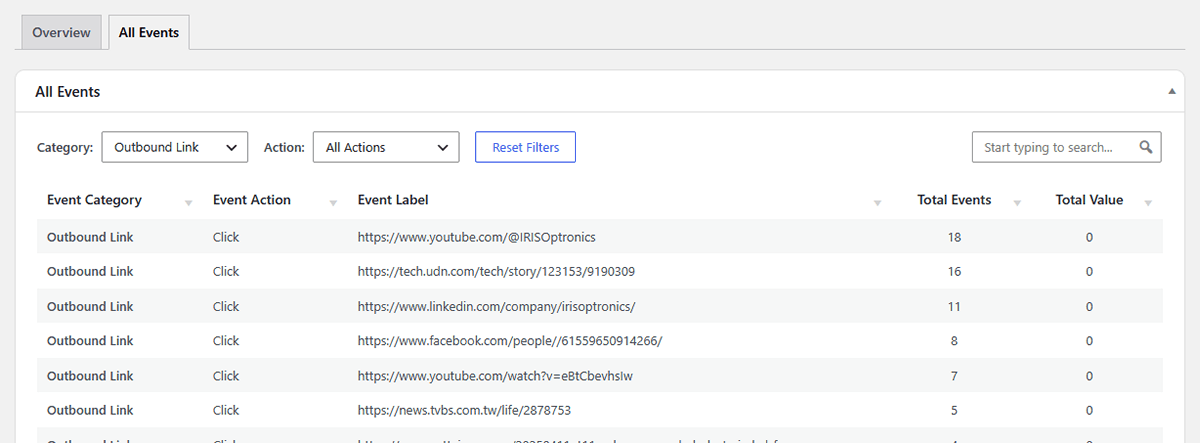
Once a user clicks on an external link, the action is automatically recorded as an Event. To see your report, simply navigate to WP Insights > Events in your WordPress dashboard.
Your outbound link clicks will appear with the Event Category “Outbound Link”. The “All Events” table will show you a complete, ranked list of every external URL that has been clicked, along with the total number of clicks for each. This allows you to quickly see which external links are performing best.
Conclusion
Tracking outbound link clicks provides another layer of valuable insight into user behavior, helping you understand what your audience values beyond the content on your own pages.
With a modern analytics tool, this data shouldn’t be difficult to obtain. In WP Insights Pro, this tracking happens automatically, giving you immediate access to these insights without any complex configuration. It’s another way to get the data you need, simply and effectively, right inside your WordPress dashboard.
Ready for Zero-Bloat Analytics?