
How to Track PDF Downloads in WordPress (The Easy Way)
Many WordPress websites offer downloadable files in some form: PDF guides, brochures, technical documentation, ebooks, price lists, or white papers. After adding those files to a website, one practical question often comes up: are visitors actually downloading them?
If you want to track PDF downloads in WordPress without using Google Tag Manager or custom code, the setup can be much simpler than many people expect.
Understanding which downloadable files are actually being used can provide useful insight into visitor interests and content engagement. However, depending on the analytics platform being used, tracking downloads in WordPress often requires additional setup or custom event configuration.
This guide will show you how to set up WordPress download tracking easily, so you can get the data you need without any complex configuration.
Why Download Tracking Often Requires Extra Setup?
The challenge with tracking downloads is that when a user clicks a link to a file like a PDF, they are often leaving your webpage. Standard analytics tools, which are primarily designed around page views and sessions, do not always reliably record this click as a dedicated “download” event.
To solve this, tools like Google Analytics 4 often require custom event tracking, either through a code snippet or by configuring click-based triggers in Google Tag Manager. Depending on the setup, this can involve additional configuration steps that many site owners prefer to avoid for something relatively simple.
Automatic Download Tracking in WP Insights Pro
In WP Insights Pro, download tracking is handled automatically. The feature is enabled by default and requires no additional configuration.
Our plugin automatically detects when a visitor clicks a link to a common downloadable file type. It identifies links ending in extensions like:
- Documents: pdf, doc, docx, xls, xlsx, ppt, pptx, txt, csv
- Archives: zip, rar, gz, 7z
- Media: mp3, mp4, mov
- …and more.
How to See Your Download Reports
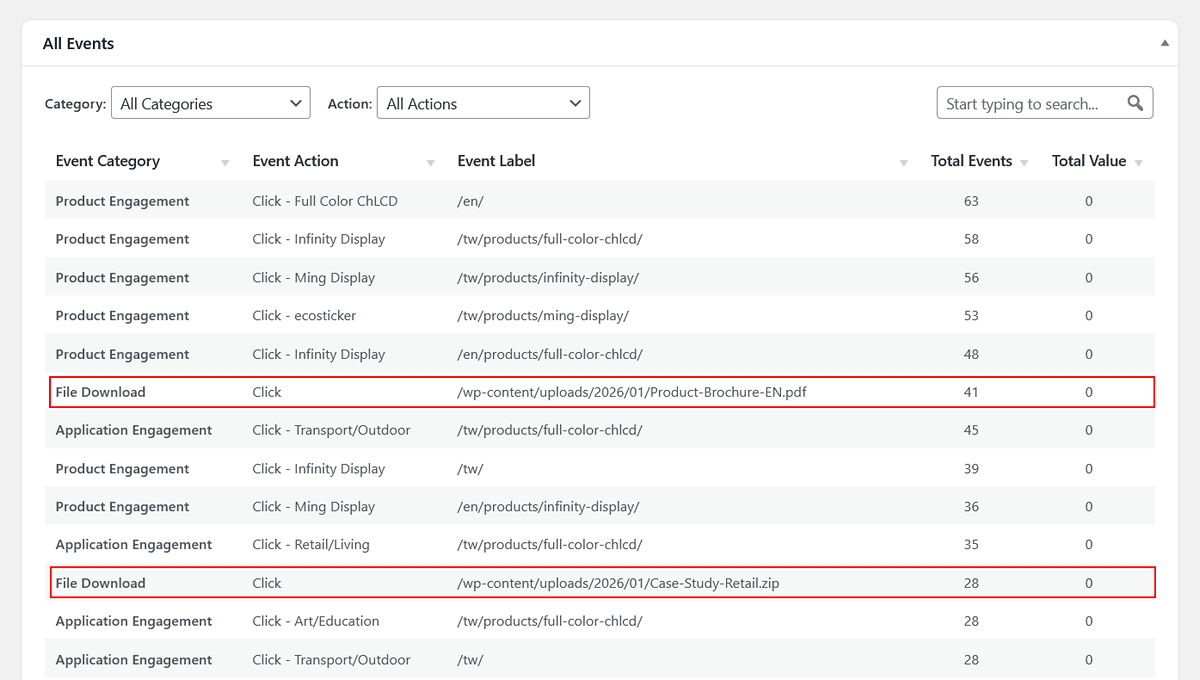
Once a user clicks on a file link, the download is automatically recorded as an Event. To see your report, simply navigate to WP Insights > Events in your WordPress dashboard.
You will see a clear breakdown of all tracked interactions. Your file downloads will appear with the Event Category “File Download”. The “All Events” table will show you a complete list of every file that has been downloaded, allowing you to see which resources are the most popular.
WP Insights Pro also includes advanced no-code event tracking features for buttons, forms, and custom interactions, for users who need more detailed engagement analytics.
Conclusion
Download tracking is one of those small analytics features that can still provide useful insight over time. It can help identify which resources visitors actually engage with, whether that is a product brochure, a technical document, or a downloadable guide.
In WP Insights Pro, this tracking happens automatically, without requiring additional tags or external services, which keeps the setup relatively simple for WordPress site owners.
Ready for Zero-Bloat Analytics?