
Events Reports
Event Tracking is a core feature of WP Insights Pro.
While pageviews tell you what pages your visitors see, events tell you what they do on those pages. This is the key to understanding user engagement.
An event is any specific interaction you choose to track—a button click, a form submission, a video play, or a file download. The Events Report is your central hub for analyzing all of these custom interactions, giving you a much deeper understanding of how users are engaging with your content and calls-to-action.
Overview Tab
The Overview tab gives you a high-level summary of all event activity on your site for the selected date range.
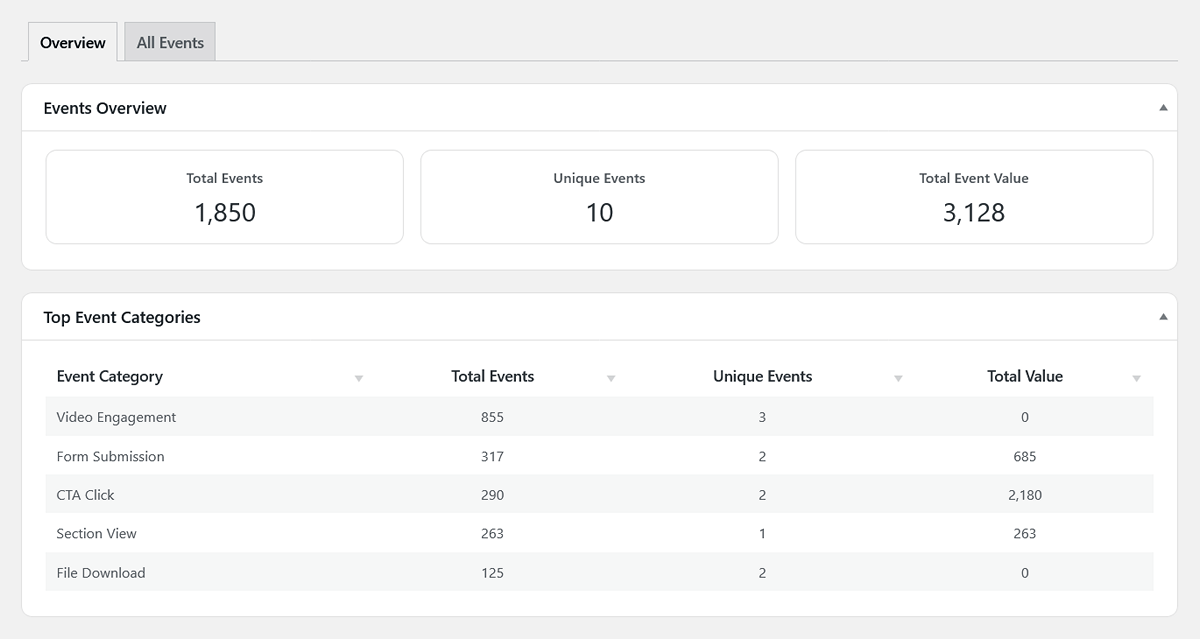
Event Highlights (Scorecards)
- Total Events: The raw count of all events that were triggered on your site. If a user clicks the same button three times, this will count as three total events.
- Unique Events: The number of unique event combinations that have occurred. An event is considered unique based on its combined Category, Action, and Label. If a user clicks the same “Buy Now” button three times, it still only counts as one unique event.
- Total Event Value: The sum of all numeric values you have assigned to your events. This is a powerful way to “score” different interactions (e.g., assigning a high value to a “Demo Request” and a low value to a video play).
Top Event Categories Table
This table groups all your events by their Category, giving you a broad overview of which types of interactions are most common on your site. It shows you the total events, unique events, and total value for each category you’ve defined (e.g., CTA, Form Submit, Video, Download).
All Events Tab
This is where you can dive into the granular details. The “All Events” table provides a complete, sortable list of every unique event that has been tracked on your site.
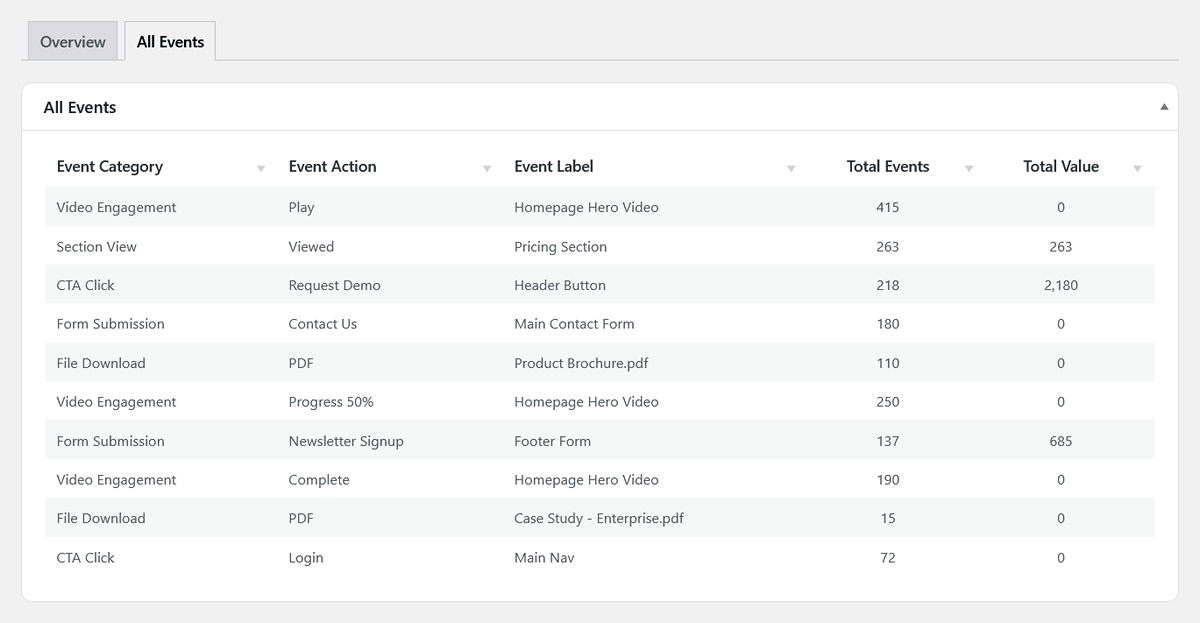
This detailed view allows you to see the full picture and analyze the performance of specific interactions. Here’s a breakdown of the columns:
- Event Category: The broad group you defined for the event (e.g., CTA).
- Event Action: The specific action the user took (e.g., Click, Sign Up).
- Event Label: The extra detail that identifies the specific element (e.g., Header Buy Button).
- Total Events: The total number of times this exact event combination was triggered.
- Unique Events: This will always be 1 in this table, as each row represents a unique event combination.
- Total Value: The total value accumulated for this specific event.
How to Set Up Event Tracking
You can implement WordPress event tracking with WP Insights Pro using one of two simple methods:
- The No-Code Method (Recommended for most users):
Use our interface in Settings > Auto-Tracked Events to track clicks and element views by simply providing a CSS selector. This is the easiest way to get started without writing any code. - The Developer Method (For advanced use cases):
For complete flexibility, you can trigger events from anywhere in your theme or other scripts by calling our global JavaScript function:
wpipTrackEvent(‘Category’, ‘Action’, ‘Label’, ‘Value’);
For a complete guide on setting up your first events, please see our Settings Guide.
Next Steps
Once you have events set up, you can turn them into measurable business outcomes. The next step is to learn how to use our Goal system to define which of these events count as a conversion.