
Tools & Status
The Tools & Status page provides an overview of system health, manual controls for your data, and options to diagnose potential issues.
While most of the plugin’s data processing is fully automated, this page gives you the ability to take control when you need to.
Analytics Processing Status
This first section gives you a live look at the plugin’s background processing system.
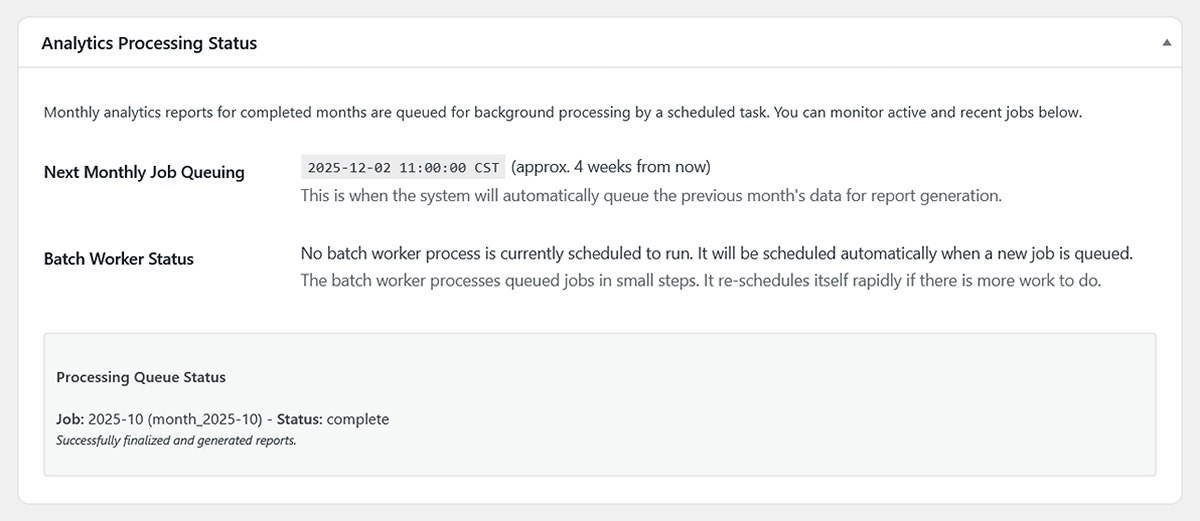
- Next Monthly Job Queuing: This shows you the exact date and time when the plugin will next automatically queue up a completed month’s data for processing. This task typically runs on the 2nd day of each new month.
- Batch Worker Status: This tells you if the background worker process is currently scheduled to run. It’s normal for this to say “No batch worker process is currently scheduled” if there are no active jobs in the queue. The moment a new job is added, the worker will be scheduled automatically.
- Current Processing Queue Status: This is a live view of any report generation jobs that are currently running or have recently completed. It will show you which month is being processed and what stage it’s at. This is the place to monitor progress after you manually trigger a re-aggregation.
Privacy Readiness Check
This section provides a quick audit of your key settings to help you align with privacy regulations like GDPR. For a full breakdown of these settings, please see our Settings Guide.
- IP Address Handling: Confirms whether you are anonymizing visitor IP addresses.
- Raw Log Retention: Shows your current retention policy for raw log files.
- Overall Status: Shows a simple, at-a-glance confirmation that key privacy-related settings are correctly configured.
Data Management & Manual Actions
This section provides direct control over your data and the report generation process.
Data Usage
At the top, you’ll see an estimate of the disk space being used by your raw logs, processed reports, and the on-demand cache.
Manual Data Actions
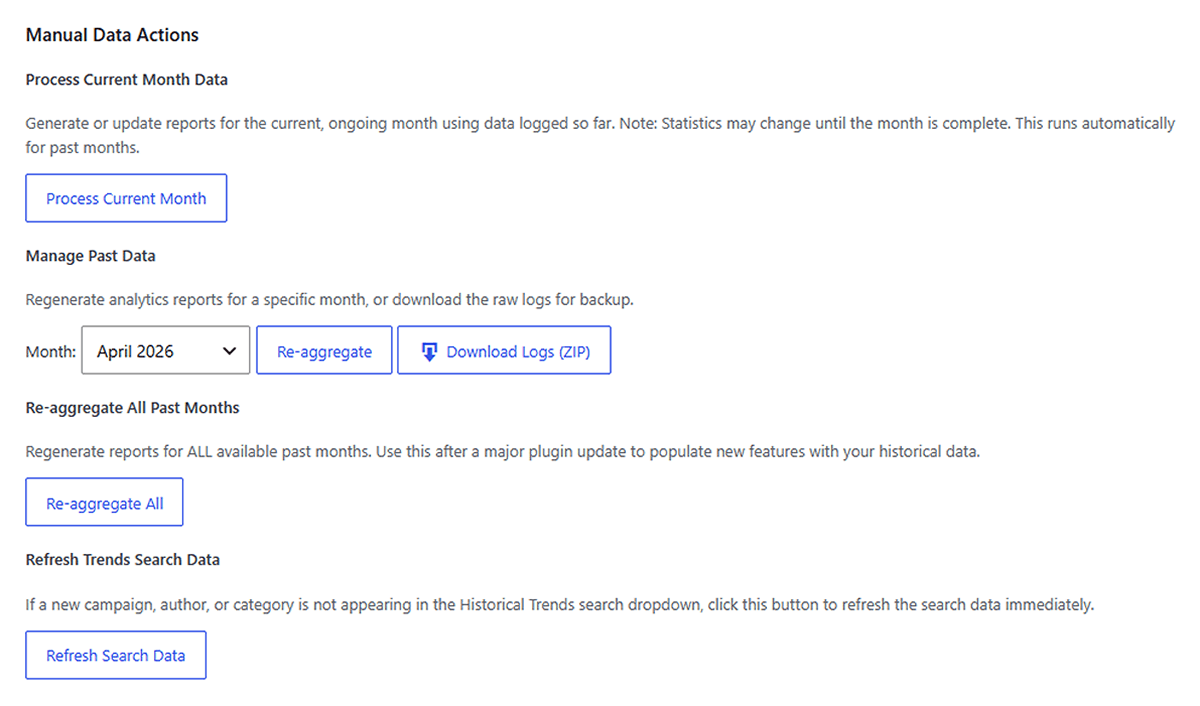
- Process Current Month Data: Your monthly reports are generated automatically for completed months. If you want to see the most up-to-date (but still incomplete) data for the current, ongoing month, click this button. This is also useful for getting your second data point for the Historical Trends report after a fresh installation.
- Manage Past Data: This section allows you to perform actions on a specific month’s data. Select the desired month from the dropdown menu to begin.
- Re-aggregate: Regenerates the analytics reports for the selected month. This is useful if you need to troubleshoot a report or have changed a core plugin setting. You may also be prompted by an admin notice to use this tool after a major plugin update to populate historical data for new reporting features.
- Download Logs (ZIP): Downloads a complete archive of all raw, line-by-line visitor log files for the selected month. This can be used to create off-site backups before logs are removed by the retention policy.
- Re-aggregate All Past Months: This button provides a simple one-click solution to regenerate reports for all available past months. It is recommended after a major plugin update that introduces new reporting features. Clicking this will automatically queue a background job for each month that has raw log data, ensuring your reports are fully populated with historical data. This is also the action to use after being prompted by the “Re-aggregate Data” admin notice.
- Refresh Trends Search Data: The Historical Trends report uses a search index to help you quickly find pages, authors, campaigns, and more to analyze. This index is updated automatically on a daily basis. However, if you’ve recently published a new post or launched a new campaign and it’s not appearing in the search dropdown immediately, you can use this button to force a refresh of the search data instantly.
Data Cleanup (Use with Caution!)
These actions are permanent and cannot be undone.
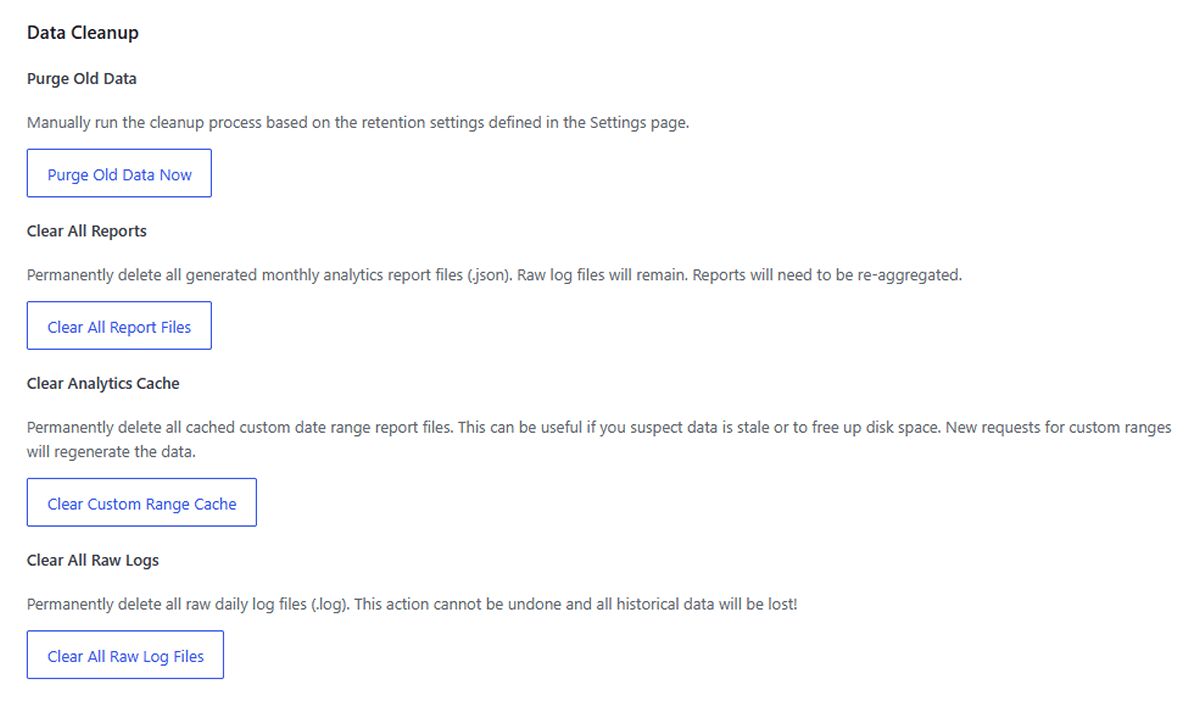
- Purge Old Data: Manually triggers the data retention cleanup process based on your settings. This is the same process that runs automatically each day.
- Clear All Reports: Deletes all of your processed .json report files. Your raw log data will remain, but you will need to re-aggregate all months to see your reports again.
- Clear Analytics Cache: Deletes only the cached reports for custom date ranges. This is a safe action to perform if you feel your on-demand reports are not updating correctly.
- Clear All Raw Logs: WARNING: This is a destructive action. It will permanently delete all of your historical visitor .log files. It cannot be undone and should only be used if you need to reset your analytics data entirely.
System Information
This section provides key details about your server environment, which can be useful for troubleshooting.
- Plugin, PHP, & WordPress Version: Basic version information.
- Memory Limits & Execution Time: These are core server settings that can affect the plugin’s ability to process large amounts of data. The batch processing system works well even on hosts with lower limits.
- SQLite3 Extension: A critical check. This must show as “Enabled” for WP Insights Pro to function correctly. If it is disabled, please contact your web host for assistance.
- Geolocation Database: This area provides a complete status report on your geographic data source.
The plugin automatically keeps your geolocation database up-to-date via a monthly automated cron job (as long as a valid MaxMind license key is entered in the settings). This keeps your data up to date over time.- Status & Type: This tells you if a database was found and which one is active—either the basic, bundled “Country-Level” database or the more detailed, user-downloaded “City-Level” database.
- Build & Update Dates: Shows you the date the database file was created by MaxMind and the date it was last downloaded or updated on your server.
- Update Button: If you have entered your license key, a “Update Database Now” button will appear. You can click this to manually fetch the latest version from MaxMind at any time, without waiting for the next automated monthly update.
- Plugin Data Directory: Shows the exact path on your server where your analytics log and report files are stored.
Next Steps
This section covered how to manage and troubleshoot your analytics system. For advanced integration, let’s explore the tools available for developers.