How to Track OpenAI Ads in WordPress: From Clicks to Conversions
AI assistants like ChatGPT are becoming another way people discover products, services, and information. As OpenAI Ads emerge as an advertising channel, marketers have a practical question to answer: what happens after someone clicks an ad and arrives on their website?
Advertising platforms can tell you how many clicks your ads receive, but clicks alone don’t tell you whether visitors engage with your website. Do visitors explore your content, submit a lead form, or purchase a product? Or do they leave without engaging?
Tracking this post-click journey helps you understand the quality of your advertising traffic and how it contributes to your website’s goals.
With version 1.6.0, WP Insights Pro introduces a dedicated AI Advertising report for analyzing traffic from OpenAI Ads. This guide explains how to configure your tracking parameters and evaluate campaign performance directly from your WordPress dashboard.
The Mechanics: Configuring OpenAI Ads for Tracking
WP Insights Pro identifies OpenAI Ads traffic through standard UTM parameters in your landing-page URLs. It does not need to import advertising data from OpenAI to classify visits and report on their subsequent activity on your website.
OpenAI Ads supports dynamic URL parameters, which let you insert campaign and ad identifiers into landing-page URLs automatically. Instead of manually creating a separate tracking URL for every ad, you can use supported macros to populate the relevant campaign and ad IDs automatically.
To configure tracking, open the relevant campaign, ad group, or ad settings in OpenAI Ads and locate the landing-page query-parameter settings. Add the following query string:
utm_source=openai&utm_medium=paid&utm_campaign={campaign_id}&utm_content={ad_id}OpenAI documents these dynamic parameters in its Ads campaign management documentation.
How it works:
- Traffic classification: WP Insights Pro uses utm_source=openai together with utm_medium=paid to classify the visit as OpenAI Ads traffic. (The plugin also accepts cpc as the medium).
- Campaign identification: The {campaign_id} macro is replaced with the corresponding campaign ID. WP Insights Pro uses the resulting utm_campaign value to organize traffic by campaign.
- Ad identification: The {ad_id} macro is replaced with the corresponding ad ID. WP Insights Pro captures the resulting utm_content value for the individual-ad drill-down report.
The dynamic macros populate the campaign and ad identifiers; they do not trigger tracking by themselves. The UTM parameters simply identify the traffic source and provide the values used to organize the reports.
Viewing OpenAI Ads in WP Insights Pro
Once your ads are running and your landing-page URLs are configured correctly, tracked visits will begin appearing in your WordPress analytics.
Navigate to WP Insights > Acquisition and open the AI Advertising tab.
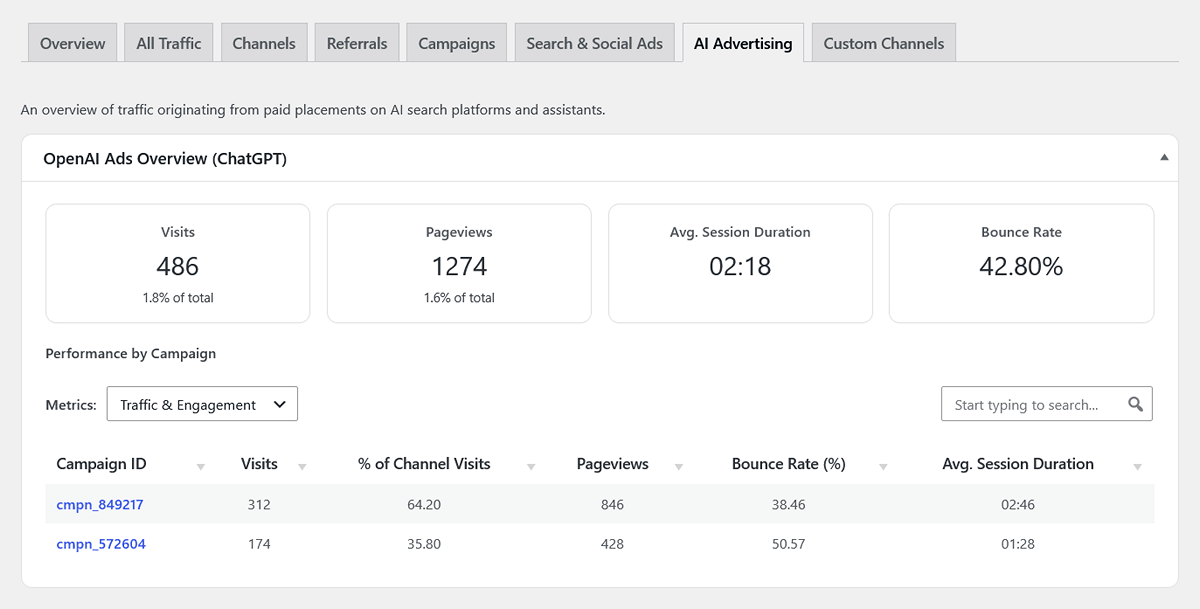
The report provides a high-level overview of your OpenAI Ads traffic through four scorecards:
- Visits: The number of tracked visits attributed to OpenAI Ads.
- Pageviews: The number of pageviews associated with that traffic.
- Average Session Duration: How long visitors spend on your website, on average.
- Bounce Rate: The percentage of visits that meet the plugin’s bounce criteria.
The Performance by Campaign table provides a more detailed breakdown. It organizes your traffic by Campaign ID and shows metrics such as Visits, percentage of channel visits, Pageviews, Bounce Rate, and Average Session Duration.
Campaign-level data is useful for comparing your advertising efforts, but you may also want to understand which individual ads attract more engaged visitors.
To investigate further, click a Campaign ID in the table. This opens a dedicated drill-down report showing the performance of individual Ad IDs captured through the utm_content parameter. This lets you compare traffic and engagement across individual ads without manually filtering your website analytics.
From Ad Clicks to Conversions & WooCommerce Revenue
Traffic volume and engagement are useful indicators, but many businesses ultimately want to understand whether their advertising contributes to meaningful outcomes.
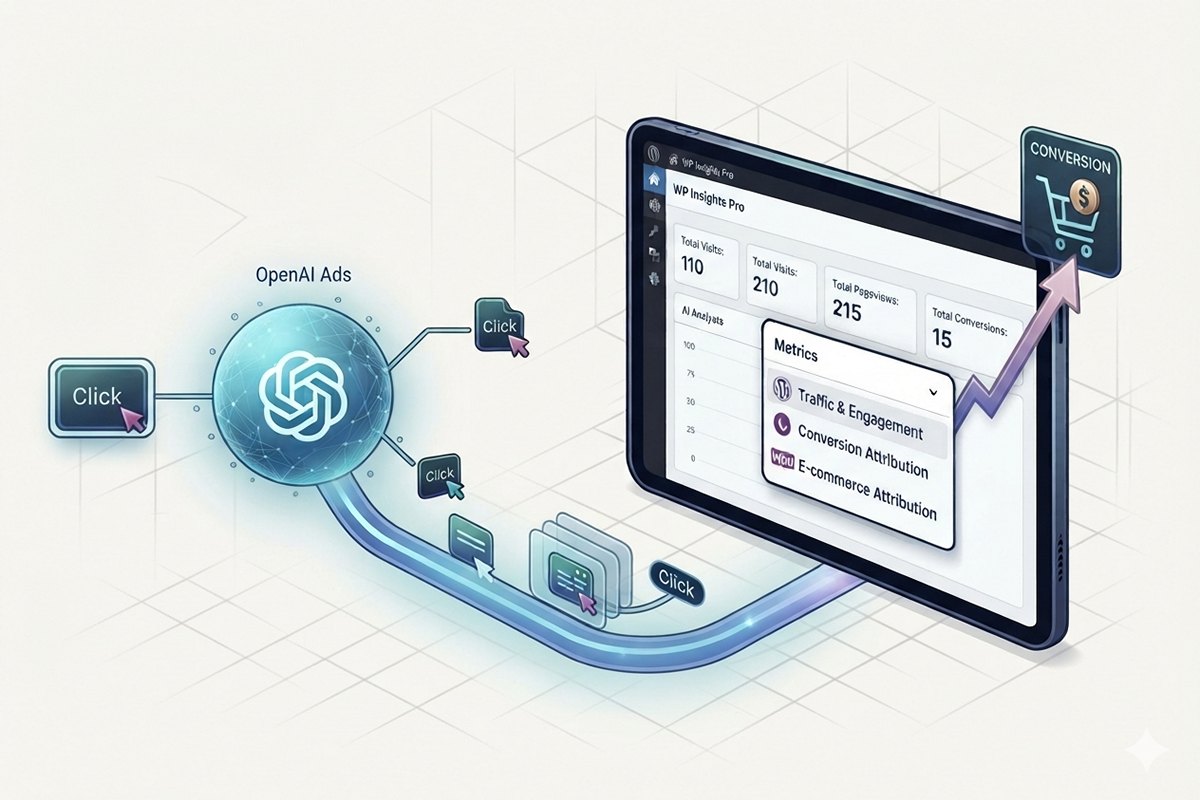
If you have configured Goals in WP Insights Pro, or if your website uses WooCommerce, you can examine conversion and e-commerce metrics using the Metrics toggle located above the advertising tables.
[Image Placeholder: A close-up screenshot of the Metrics dropdown menu, showing the options for “Traffic & Engagement”, “Conversion Attribution”, and “E-commerce Attribution”.]
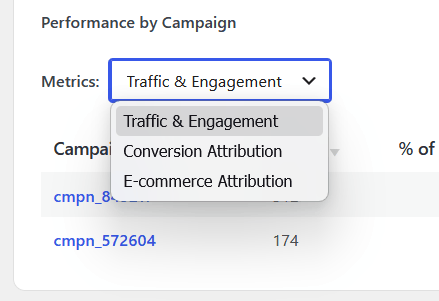
The toggle lets you switch between three reporting modes:
- Traffic & Engagement: Examine visits, pageviews, bounce rate, and average session duration.
- Conversion Attribution: Examine attributed goal completions and the associated conversion metrics.
- E-commerce Attribution: If WooCommerce tracking is available, examine attributed orders and revenue.
These views help you move beyond traffic volume and assess which campaigns and individual ads are associated with goal completions and WooCommerce revenue.
Understanding Attribution
WP Insights Pro uses a linear attribution model across eligible pages in a tracked session. When a visitor arrives through an OpenAI Ads campaign and completes a tracked goal or makes a purchase, the campaign may receive attribution credit under that model.
Attribution helps you understand how tracked traffic contributes to conversions and revenue, but it is not absolute proof that an ad alone caused the outcome. Other interactions and factors may also influence a visitor’s decision.
It’s also important to distinguish attributed revenue from advertising profitability. To calculate Return on Investment (ROI) or Return on Ad Spend (ROAS), you need advertising cost data in addition to the attributed results reported by your website analytics.
Transparency: What This Tracking Does (and Doesn’t) Measure
Understanding the boundaries of your analytics tools is just as important as understanding their reports.
What this tracking doesn’t do
WP Insights Pro does not connect to the OpenAI Ads API or import advertising-side metrics such as impressions, clicks, click-through rate (CTR), or ad spend into its reports. It therefore cannot independently calculate ROI or ROAS.
What it does do
WP Insights Pro measures tracked activity on your WordPress website after a visitor arrives. This includes visits, engagement, and attributed goal completions or WooCommerce revenue, depending on your configuration. As with any website analytics system, the results depend on tracking data being collected successfully. Browser restrictions, blocked scripts, and other technical limitations can affect the data available.
Using both reports
OpenAI Ads reporting provides advertising-side metrics, including impressions, clicks, CTR, and spend. WP Insights Pro complements those figures with website-side analytics and attribution. Using both reports gives you a more complete picture of campaign performance: how your ads perform on the advertising platform and how tracked visitors behave after reaching your website.
Conclusion
As AI assistants become another channel through which people discover products and services, understanding the behavior of visitors arriving from AI advertising will become increasingly useful.
With dynamic UTM parameters and the dedicated AI Advertising report in WP Insights Pro, you can analyze OpenAI Ads traffic, compare individual campaigns and ads, and examine their attributed contribution to goals and WooCommerce revenue—all within your WordPress dashboard.
Already using WP Insights Pro? Update to version 1.6.0 to access the new AI Advertising report.
New to WP Insights Pro? Explore our pricing plans to find the right plan for your website.
Ready for Zero-Bloat Analytics?