A Beginner’s Guide to Tracking Conversions in WordPress (The Easy Way)
Tracking conversions in WordPress can be confusing for many site owners. Setting up tools like Google Tag Manager or custom code snippets often requires technical knowledge, and tutorials can be hard to follow.
At the same time, the questions are simple: “How many people click my ‘Buy Now’ button?” or “Is my contact form working?”
WP Insights Pro lets you set up conversion tracking in WordPress without writing code. This guide will show you how to configure your first two conversion goals in just a few minutes.
First, What Are We Even Tracking? Events vs. Goals
Before we start, let’s quickly clarify two key terms:
- An Event: Think of this as a specific interaction. A visitor clicking a button is an event. A visitor seeing your pricing section is an event. It’s a single, measurable action.
- A Goal: This is the finish line. A goal is an event (or a page visit) that you’ve defined as a key conversion for your business. A “Contact Form Submit” event is a Goal. A “Thank You Page” visit is a Goal.
With WP Insights Pro, the process is simple: you first tell the plugin which interactions to watch for (Events), and then you tell it which of those events count as a conversion (Goals).
Goal #1: The Classic “Thank You” Page Goal
This is the most common and reliable way to track a form submission. When a user submits your contact form or completes a purchase, you redirect them to a “thank you” page. We’ll set up a goal to count how many people land there.
Step 1: Go to the Goals Settings
Navigate to WP Insights > Settings and open the Goals & Conversions section.
Step 2: Define Your Goal
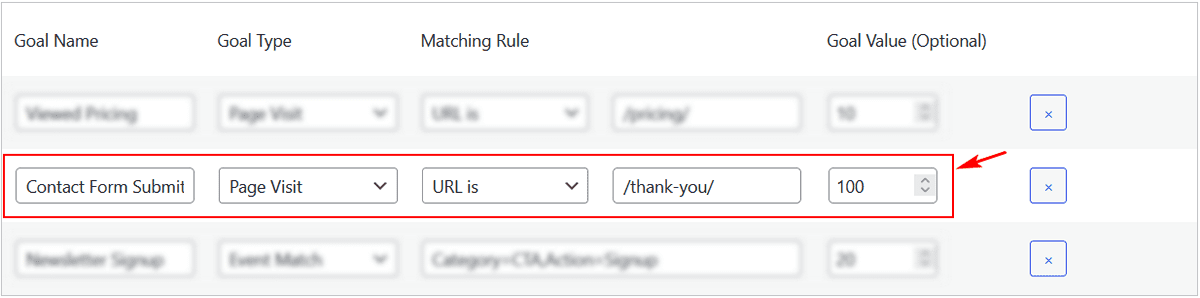
In an empty row, fill out the fields like this:
- Goal Name: Contact Form Submitted
- Goal Type: Select Page Visit
- Matching Rule: URL is and then type the path to your thank-you page, like /thank-you/.
- Goal Value (Optional): Assign a value if you want. For a lead, you might assign a value of 50.
Step 3: Save and You’re Done!
Click “Save Changes.” That’s it. Your WordPress conversion tracking for this form is now live. WP Insights Pro will automatically record a conversion every time a visitor lands on that specific page.
Goal #2: Tracking a Button Click (No Thank You Page)
What if you want to track clicks on a button that doesn’t go to a thank-you page, like a “Download Brochure” link or an external affiliate link? The No-Code Event Tracker handles this easily.
First, you need to give your button a unique identifier. Most page builders (like Elementor or Kadence Blocks) have an “Advanced” tab for any button or link where you can add a CSS Class.
Step 1: Assign a CSS Class to Your Button
Edit your button and in the “Additional CSS Class(es)” field, give it a simple class name. Let’s use cta-brochure-download.
Step 2: Tell WP Insights Pro to Track That Class
Now, head over to WP Insights > Settings and open the Auto-Tracked Events section. In the “Tracked Click Events” table, add a new row:
- CSS Selector: .cta-brochure-download (Don’t forget the dot . for a class!)
- Event Category: Downloads
- Event Action: Click
- Event Label: Brochure Download

(Insert a screenshot of the “Tracked Click Events” repeater UI with this new row filled out.)
Step 3: Turn that Event into a Goal
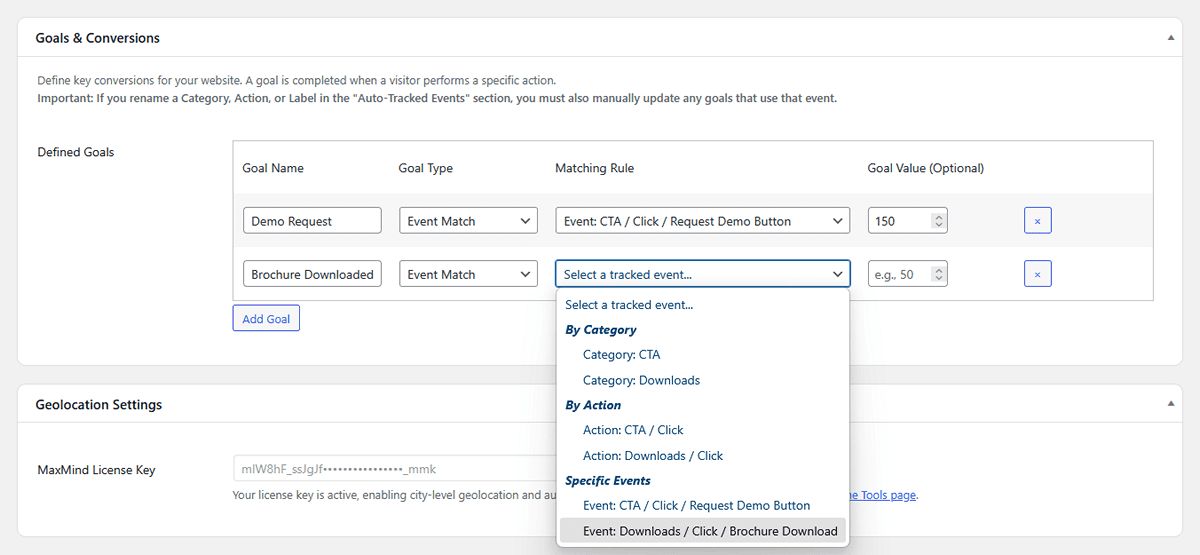
Go back to the Goals & Conversions section and add your new goal:
- Goal Name: Brochure Downloaded
- Goal Type: Select Event Match
- Matching Rule: Click the dropdown. You will now see the “Downloads / Click” event you just created in the list. Simply select it.
Click “Save Changes”.
Track Your Conversions in the Dashboard
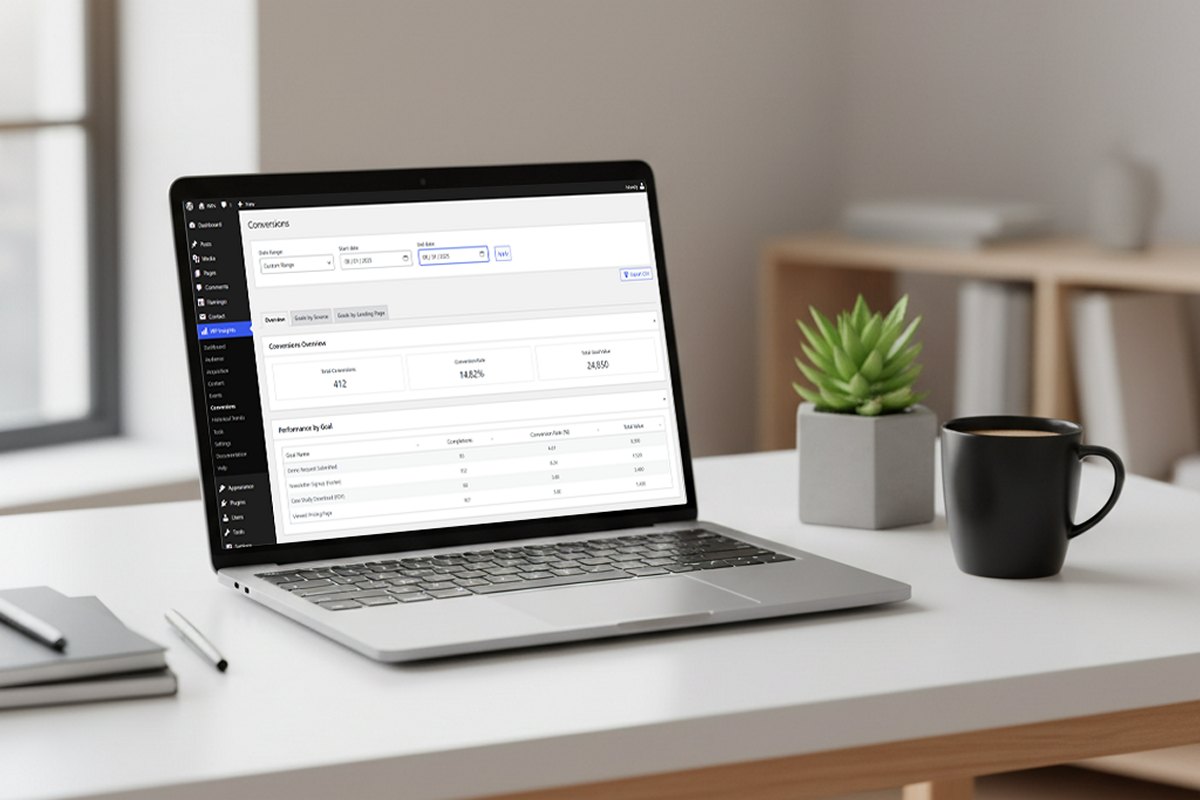
You’re all set! Now, as visitors interact with your site, you can head over to the Conversions report in your WP Insights Pro dashboard. You’ll see a clear overview of how your goals are performing, which traffic sources are driving the most conversions, and which landing pages are turning visitors into customers.
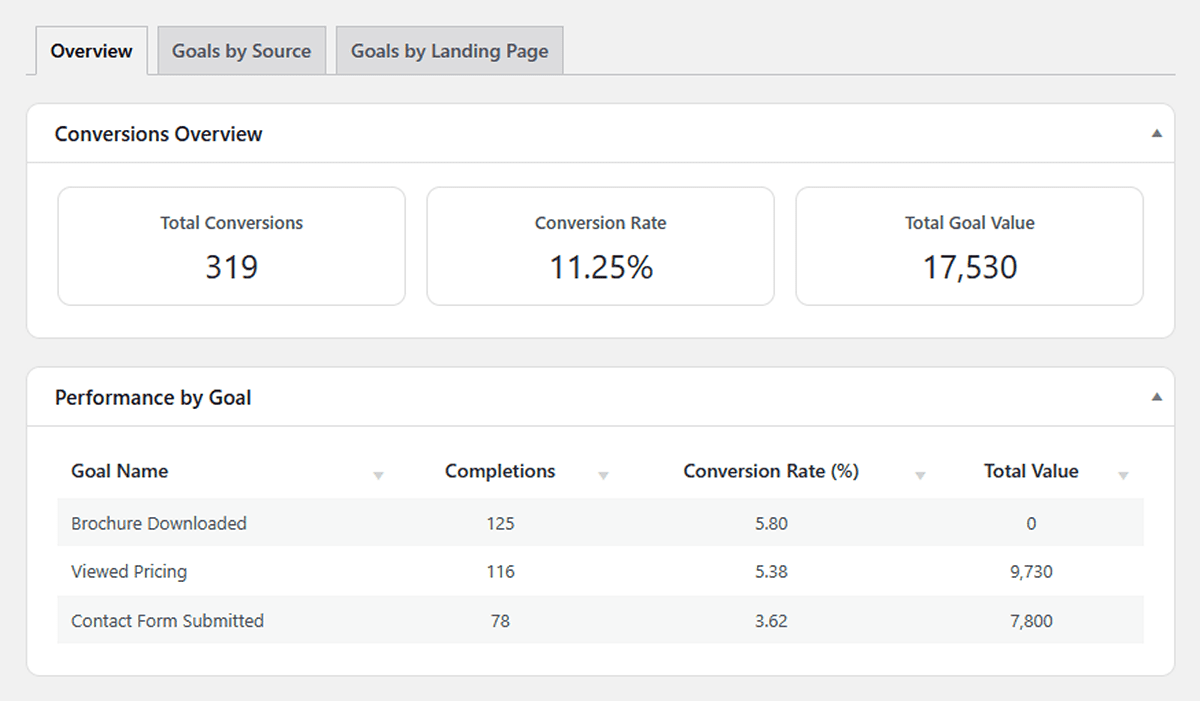
Tracking the interactions that matter on your site doesn’t have to be complicated. With the right setup, it can become a straightforward, useful part of managing your website.
Ready for Zero-Bloat Analytics?